
整理一些 C# 编程技巧
0. C# 编码规范#
0.1 关于标识符的规则#
- 尽管可以包含数字字符,但它们必须以字母或下划线开头。
- 不能把 C#关键字用作标识符。如果需要把某一保留字用作标识符,那么可以在标识符的前面加上前缀符号@,告知编译器其后的内容是一个标识符。如:abstract是C#关键字,@abstract有效的标识符。
0.2 命名约定#
0.2.1 Pascal 大小写形式的命名约定#
- 名称空间和类,以及基类中的成员等的名称,如:
EmployeeSalary - 在C#中常量(其他语言中常常全部大写)的名称,如:
const int MaximumLength;
0.2.2 camel 大小写形式的命名约定#
- 类型中所有私有成员字段的名称,如:
private int _subscriberId;注意前缀名常常用一条下划线开头 - 传递给方法的所有参数的名称,如:
public void RecordSale(string salesmanName, int quantity);
0.3 名称空间的名称#
Microsoft建议使用如下的名称空间:<CompanyName>.<TechnologyName>
0.4 属性和方法的使用#
满足以下所有条件,就把它设置为属性,否则就应使用方法:
- 客户端代码应能读取它的值,最好不要使用只写属性
- 读取该值不应花太长的时间
- 读取该值不应有任何细微的和不希望的负面效应
- 可以按照任何顺序设置属性
- 顺序读取属性也应有相同的效果
0.5 字段的用法#
字段的用法非常简单。 字段应总是私有的,但在某些情况下也可以把常量或只读字段设置为公有。 原因是如果把字段设置为公有,就不利于在以后扩展或修改类。
1. 帮助文件制作与显示#
帮助文件一般是 CHM 格式的文件,这里介绍的是如何将“相关人员”制作的 WORD 文档转化为 CHM 文件:
网上有一款 word2chm 软件个人认为很好用,虽然界面看起来很 low ,但是好用、易用是一大特色。
有兴趣的朋友点此下载,使用方法就不赘述了。
附上版权声明样例:
Copyright© 2015-2016 <a class="moLink" href="" target="_blank">公司名称</a>,
All rights reserved.<br />
Powered by <a href="http://3gbywork.github.io" target="_blank">3gbywork</a>下面结合VS工程做详细说明:
添加 help.chm 帮助文件到 Resources.resx 资源文件中,在程序中可以通过以下方法生成 help.chm 并打开:
// 程序所在路径
string path = Environment.CurrentDirectory + "/Doc";
string file = path + "/help.chm";

// 判断帮助文件是否存在,不存在则创建
if (!File.Exists(file))
{
    try
    {
        // 如果存在 help.chm 文件夹则删除
        if (Directory.Exists(file))
            Directory.Delete(file);
        // 如果不存在 Doc 文件夹则创建
        if (!Directory.Exists(path))
            Directory.CreateDirectory(path);
        // 将帮助文件写入到当前路径的Doc目录下
        // 并以 help.chm 命名
        byte[] help = Properties.Resources.help;
        FileStream fs = new FileStream(file,
        FileMode.Create, FileAccess.Write);
        fs.Write(help, 0, help.Length);
        fs.Flush();
        fs.Close();
    }
    catch (Exception exp)
    {
        MessageBox.Show(exp.Message, "错误!",
        MessageBoxButton.OK, MessageBoxImage.Error);
    }
}
// 如果文件存在则打开
if (File.Exists(file))
    Process.Start(file);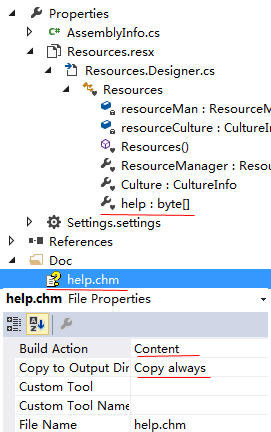
也可将帮助文件添加到 VS 工程中,并将 help.chm 文件属性的 Build Action 设为 Content ,Copy to Output Directory 设为 Copy always,参见上图。
这样每次编译时,VS 就会把 help.chm 复制到输出目录下的 Doc 目录下。
2. 扩展方法#
扩展方法被定义为静态方法,但它们是通过实例方法语法进行调用的。它们的第一个参数指定该方法作用于哪个类型,并且该参数以 this 修饰符为前缀。仅当你使用 using 指令将命名空间显式导入到源代码中之后,扩展方法才位于范围中。
namespace CustomExtensions
{
    //Extension methods must be defined in a static class
    public static class StringExtension
    {
        // This is the extension method.
        // The first parameter takes the "this" modifier
        // and specifies the type for which the method is defined.
        public static int WordCount(this String str)
        {
            return str.Split(new char[] {' ', '.','?'}, StringSplitOptions.RemoveEmptyEntries).Length;
        }
    }
}

namespace Extension_Methods_Simple
{
    //Import the extension method namespace.
    using CustomExtensions;
    class Program
    {
        static void Main(string[] args)
        {
            string s = "The quick brown fox jumped over the lazy dog.";
            //  Call the method as if it were an
            //  instance method on the type. Note that the first
            //  parameter is not specified by the calling code.
            int i = s.WordCount();
            System.Console.WriteLine("Word count of s is {0}", i);
        }
    }
}
3. 实例化泛型对象#
方法 1:
void Method<T>(T t) where T : new()
{
    T tmp = new T();
}
方法 2:
void Method<T>(T t)
{
    T tmp = Activator.CreateInstance<T>();
}
4. 限定泛型参数的超类#
// U是CLASSA类或是其子类
// V是CLASSB类或是其子类
void Method<U, V>(U u, V v) where U : CLASSA where V : CLASSB
{
}
5. 如何在 WPF 中引用 Winform 的控件#
5.1 在 Xaml 中使用#
首先,添加对 System.Windows.Forms.dll 和 WindowsFormsIntegration.dll 的引用
然后在 Xaml 文件中添加以下命名空间
xmlns:wfi="clr-namespace:System.Windows.Forms.Integration;assembly=WindowsFormsIntegration"
xmlns:wf="clr-namespace:System.Windows.Forms;assembly=System.Windows.Forms"
最后使用 Winform 控件时要这么写:
<wfi:WindowsFormsHost>
    <wf:PropertyGrid x:Name="propertyGrid"/>
</wfi:WindowsFormsHost>
5.2 在代码中使用#
首先,添加对 System.Windows.Forms.dll 的引用
使用时推荐直接写出完整的命名空间(避免和 WPF 控件的命名空间冲突造成不明确的引用)
System.Windows.Forms.PropertyGrid propertyGrid = new System.Windows.Forms.PropertyGrid();6. 如何获取拖入窗口的文件路径#
允许将文件拖入窗口
<Window AllowDrop="True" Drop="Window_Drop">
</Window>
处理拖拽事件
private void Window_Drop(object sender, DragEventArgs e)
{
    string filepath = "";
    // 判断拖入的是不是文件类型(文件夹亦可)
    if (e.Data.GetDataPresent(DataFormats.FileDrop))
    {
        // Array是抽象类,string[] 继承自 Array类
        Array arr = (Array)e.Data.GetData(DataFormats.FileDrop);
        string[] stra = (string[])e.Data.GetData(DataFormats.FileDrop);

        // 仅演示获取一个路径
        filepath = ((Array)e.Data.GetData(DataFormats.FileDrop)).GetValue(0).ToString();
        filepath = stra[0];
    }
}
7. 使用 PropertyGrid 的一些小技巧#
要在 PropertyGrid 中显示某个对象的属性,只需设置 PropertyGrid 的 SelectedObject 属性即可。
此时在 PropertyGrid 控件中显示的属性是指定对象的所有属性及其值。
设置属性的“可见”特性:
// 指定某一属性或事件是否应在“属性”窗口中显示。
[Browsable(false)]
public string SomeProperties { get; set;}
设置属性的描述信息:
// 指定属性或事件的描述。
[DescriptionAttribute("属性的描述信息")]
public string SomeProperties { get; set;}
设置属性的显示名称:
// 指定属性、事件或不采用任何参数的公共 void 方法的显示名称。
[DisplayNameAttribute("属性的显示名称")]
public string SomeProperties { get; set;}
设置属性的只读特性:
// 指定某个属性是否只能在设计时设置。
[DesignOnlyAttribute(true)]
public string SomeProperties { get; set;}
对属性进行分组:
// 指定当属性或事件显示在一个设置为“按分类顺序”模式的
// PropertyGrid 控件中时,用于对属性或事件分组的类别的名称。
// 在分组名称前加"\t"可以提高分组显示顺序,并且不会显示制表符
[CategoryAttribute ("分组名称")]
public string SomeProperties { get; set;}
8. using 关键字的两种用途#
- 引用名称空间,如:
using System; - 给类和名称空间指定别名。如果名称空间的名称非常长,又要在代
码中多次引用,但不希望该名称空间的名称包含在
using指令中(例如,避免类名冲突,就可以给该名称空间指定一个别名,其语法如下:using alias = NamespaceName;
9. 方法的命名参数#
参数一般需要按定义的顺序传递给方法。命名参数允许按任意顺序传递。所有下面的方法:
string FullName(string firstName, string lastName)
{
    return firstName + " " + lastName;
}
下面的方法调用会返回相同的全名:
FullName("John", "Doe");
FullName(lastName: "Doe", firstName: "John");
10. HttpWebRequest 最大并发数限制#
HttpWebRequest 默认会限制同一站点(除本地站点)最大并发数为 2, HttpClient 则没有此限制。修改默认限制方法如下:
ServicePointManager.DefaultConnectionLimit = 10;或修改 App.config 文件
<system.net>
  <connectionManagement>
    <add address="*" maxconnection="10"/>
  </connectionManagement>
</system.net>
11. ShowInTaskbar = true 导致全局快捷键失效#
参考: https://bbs.csdn.net/topics/300215652
更改 ShowInTaskbar 会重新创建窗口,即 Form.Handle 变化,如果用 Handle 去注册快捷键会导致消息发送到旧窗口
解决方案:
注册快捷键的 Handle 传 IntPtr.Zero,并通过 Application.AddMessageFilter() 方法设置消息处理程序。
12. 文件系统权限相关操作#
var dirInfo = new DirectoryInfo(dir);
var security = dirInfo.GetAccessControl();
var rules = security.GetAccessRules(true, true, typeof(NTAccount));
//获取文件夹所有者
var owner = security.GetOwner(typeof(NTAccount));
//当前用户,与owner.Value表示一致,可以用于判读所有者是不是当前用户
var currentUser = $@"{Environment.UserDomainName}\{Environment.UserName}";
//添加权限
security.AddAccessRule(new FileSystemAccessRule(owner, FileSystemRights.Modify, InheritanceFlags.ContainerInherit | InheritanceFlags.ObjectInherit, PropagationFlags.None, AccessControlType.Allow));
//更新权限
dirInfo.SetAccessControl(security);更详细内容参考:https://www.cnblogs.com/jaejaking/p/6344662.html
13. HttpClient PostAsync 请求耗时 365ms 左右#
通过 Charles 对客户端请求进行抓包,发现 Timing->Request 这一项会有 365ms 左右的耗时,具体原因不明,但是通过设置 HttpVersion.Version10 属性,请求耗时就被消除了。
var message = new HttpRequestMessage
{
    Content = requestContent,
    Method = HttpMethod.Post,
    RequestUri = new Uri(url),
    Version = HttpVersion.Version10,
};
var response = await http.SendAsync(message);
或者设置 ExpectContinue = false
httpClient.DefaultRequestHeaders.ExpectContinue = false;Expect: 100-continue 是 HTTP/1.1 协议里设计的一个 HTTP 请求头值,目的是在客户端发送请求消息主体前,先判定服务器是否愿意接受客户端发来的消息主体。
一些说法说:如果服务端不支持 100-continue 的话,会导致客户端一直等到 100-continue 请求超时以后才把请求体发送给服务端。如果是这样,就可以解释为什么请求会耗时 365ms 了。
14. ListView 的 GridView 视图下 UpperHighlight 矩形问题#
ListView 设置 View 为 GridView 时,选中与鼠标悬停条目上部分会有一个名为 UpperHighlight 的矩形,可能会导致 UI 视觉问题。
解决方式是重写 ListViewItem 的 ControlTemplate:
<Style TargetType="ListViewItem">
  <Setter Property="Template">
    <Setter.Value>
      <ControlTemplate TargetType="ListViewItem">
        <Border CornerRadius="2" SnapsToDevicePixels="True" BorderThickness="{TemplateBinding BorderThickness}"
                BorderBrush="{TemplateBinding BorderBrush}" Background="{TemplateBinding Background}">
          <GridViewRowPresenter VerticalAlignment="{TemplateBinding VerticalContentAlignment}" SnapsToDevicePixels="{TemplateBinding SnapsToDevicePixels}" />
        </Border>
      </ControlTemplate>
    </Setter.Value>
  </Setter>
</Style>
15. COM 组件注册失败问题#
对于 64位 系统,64位 dll 放在 system32 下,32位 dll 放在 SysWOW64 下
16. CefSharp 相关问题#
- CefSharp 项目不支持 Any CPU 架构
- Chrome 66 以后不支持媒体自动播放,报错信息:
DOMException: play() failed because the user didn't interact with the document first.17. WCF服务启动失败#
Net.Tcp Port Sharing Service 未启动 。
Windows Communication Foundation (WCF) 使用一个名为 Net.TCP 端口共享服务的 Windows 服务,以方便在多个进程之间共享 TCP 端口。此服务作为 WCF 的一部分进行安装,但作为一项安全预防措施,默认情况下不会启用该服务,因此必须在首次使用它之前手动启用。
18. WindowsFormsHost 不显示#
在 WPF 中加载 WinForm 控件,如果 WPF 窗体内所有的 WinForm 控件都不显示,则检查 WPF 窗口 AllowsTransparency 是否为 False;如果有个别 WinForm 控件不显示,则可能是控件绘制时异常导致,具体问题具体分析。
19. WPF 鼠标移动到窗口外抬起,窗口无法收到事件#
解决方法:在 MouseDown 事件中调用 CaptureMouse,在 MouseUp 事件中调用 ReleaseMouseCapture。
20. 给 TranslateTransfrom 设置动画#
虽然不能直接给 Freezable 对象应用动画,但是可以给其所属的元素应用动画,并通过属性链设置动画的 TargetProperty
<Label x:Name="lbl" Content="三年过去了,一切才刚刚开始" Width="200" Height="30">
  <Label.RenderTransform>
    <TransformGroup>
      <TranslateTransform/>
    </TransformGroup>
  </Label.RenderTransform>

  <Label.Triggers>
    <EventTrigger RoutedEvent="Loaded" >
      <BeginStoryboard>
        <Storyboard>
          <DoubleAnimation Duration="0:0:10" From="200" To="-200" RepeatBehavior="Forever"
            Storyboard.TargetName="lbl" Storyboard.TargetProperty="RenderTransform.Children[0].X"/>
        </Storyboard>
      </BeginStoryboard>
    </EventTrigger>
  </Label.Triggers>
</Label>
21. 保存 WPF 控件为图片#
public void SaveAsBmp(string filePath, int width, int height)
{
    if (width == 0 || height == 0)
    {
        width = (int)m_ImageDataCard.ImageView.rawImageControl.Source.Width;
        height = (int)m_ImageDataCard.ImageView.rawImageControl.Source.Height;
    }

    var dpi = 96d;
    var renderRect = new Rect(0, 0, width, height);

    // 重新排列布局,在Render前调用
    Arrange(renderRect);

    var dv = new DrawingVisual();
    var rtb = new RenderTargetBitmap(width, height, dpi, dpi, PixelFormats.Pbgra32);
    using (var dc = dv.RenderOpen())
    {
        var vb = new VisualBrush(this);
        dc.DrawRectangle(vb, null, renderRect);
    }
    rtb.Render(dv);
    var encoder = new BmpBitmapEncoder();
    encoder.Frames.Add(BitmapFrame.Create(rtb));
    using (var fs = File.Create(filePath))
    {
        encoder.Save(fs);
    }
}
22. 打包字体到 WPF#
参考:将字体与应用程序一起打包 - WPF .NET Framework
// 应用字体
var fontFamily = new FontFamily(new Uri("pack://application:,,,/"), "./Fonts/#思源黑体 CN VF ExtraLight");
Application.Current.Resources["GlobalFontFamily"] = fontFamily;
// 有些字体需要设置 Language 为 zh-cn 才能正确显示中文
FrameworkElement.LanguageProperty.OverrideMetadata(typeof(FrameworkElement), new FrameworkPropertyMetadata(XmlLanguage.GetLanguage("zh-cn")));
23. Marshal将结构体转换为字节数组时字符串丢失字符问题#
// 用于测试的类
[StructLayout(LayoutKind.Sequential, Pack = 1, CharSet = CharSet.Ansi)]
public class MyClass
{
    [MarshalAs(UnmanagedType.ByValTStr, SizeConst = 5)]
    public string Name;

    [MarshalAs(UnmanagedType.ByValTStr, SizeConst = 2)]
    public string Code;

    [MarshalAs(UnmanagedType.ByValTStr, SizeConst = 3)]
    public string Sex;

    [MarshalAs(UnmanagedType.ByValTStr, SizeConst = 2)]
    public string TestLen2;

    [MarshalAs(UnmanagedType.ByValTStr, SizeConst = 4)]
    public string TestLen3;

    [MarshalAs(UnmanagedType.ByValTStr, SizeConst = 20)]
    public string Address;
}

// 测试代码
private void Button_Click(object sender, RoutedEventArgs e)
{
    var obj = new MyClass
    {
        Name = "white",
        Address = "abcdefghijklmnopq",
        Code = "32",
        Sex = "mal",
        TestLen2 = "ab",
        TestLen3 = "123"
    };
    var bytes = MarshalConvert.ObjectToBytes(obj);

    var o = MarshalConvert.BytesToObject<MyClass>(bytes);
}
转换后的结果如下:
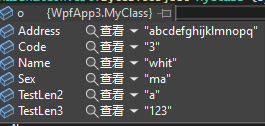
可以看到 TestLen3、 Address 的数据是完整的,其他的数据都缺少一个字符。
因为 MarshalConvert.ObjectToBytes 是将托管对象转换为非托管对象,string 类型就会根据 CharSet、UnmanagedType、SizeConst 等特性来确定是指针类型(char*、WCHAR*还是TCHAR*)、指针指向的字符数组长度。
在 C++ 中,一个指向字符数组的指针是以 '\0' 结束的,这也就隐含着 SizeConst 定义的长度是包含 '\0' 的,也就是实际存储的数据要比 SizeConst 少一个字符。
24. WPF 设置字体的注意事项#
- WPF 对于特定字体才能正确渲染,中文
宋体应设置为SimSun。 - 如果一段文本中既包含中文又包含英文,应在
FontFamily中先设置英文字体,再设置中文字体,如FontFamily="Arial,SimSun" - 中文字体的英文名称
中文名 英文名 宋体 SimSun黑体 SimHei微软雅黑 Microsoft YaHei微软正黑体 Microsoft JhengHei新宋体 NSimSun新细明体 PMingLiU细明体 MingLiU标楷体 DFKai-SB仿宋 FangSong楷体 KaiTi